Describe Azure resources as ARM Template

This article was published over a year ago. The information may be outdated.
ARM Template is a json format file which defines Azure resources.
ARM Template helps you realize the practice of infrastructure as a code.
However, ARM Template is a little bit difficult to create in the first place.
So, this time I'm going to tell you how to create ARM Template efficiently, when you need to deploy a new resource.
I'll start by explaining the way to quickly understand how to describe a new resource as json format, and then show you some examples.
1. Export template from Azure Portal
It is difficult to create a template from scratch. So I recommend you to first create the target resource on Azure Portal and then export the template of the resource to use it as a reference.
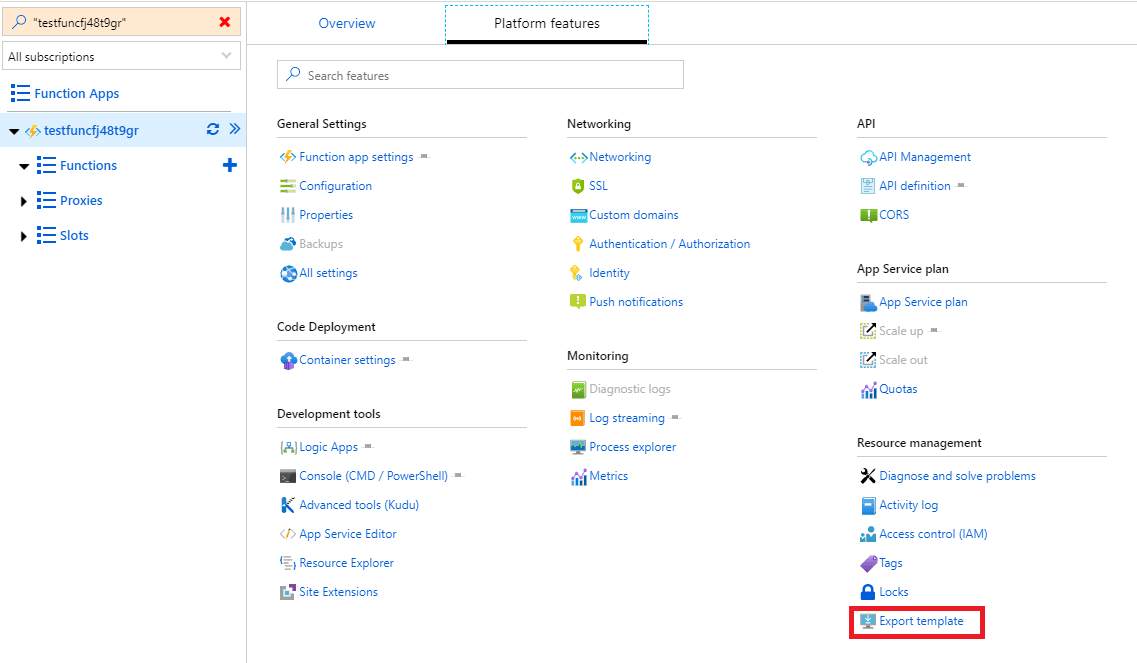
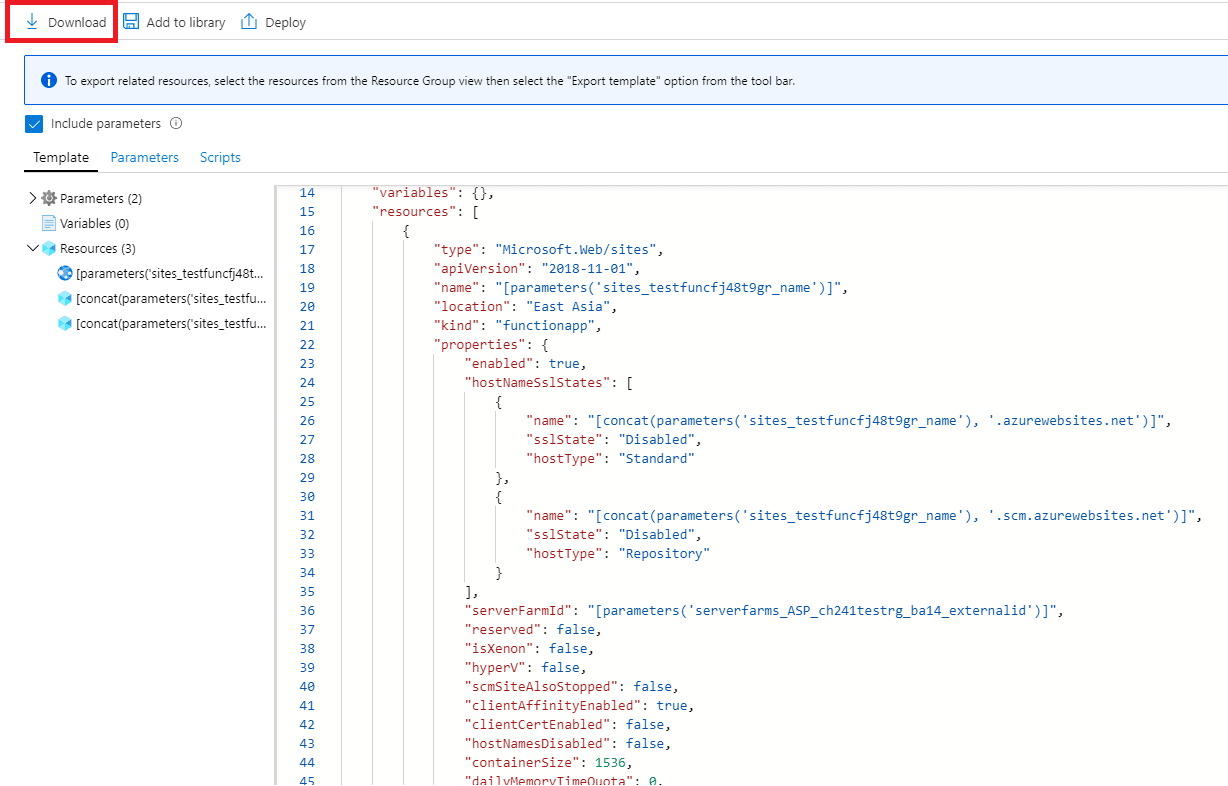
Here, you can see your resource is described as ARM Template.
2. Read official documents
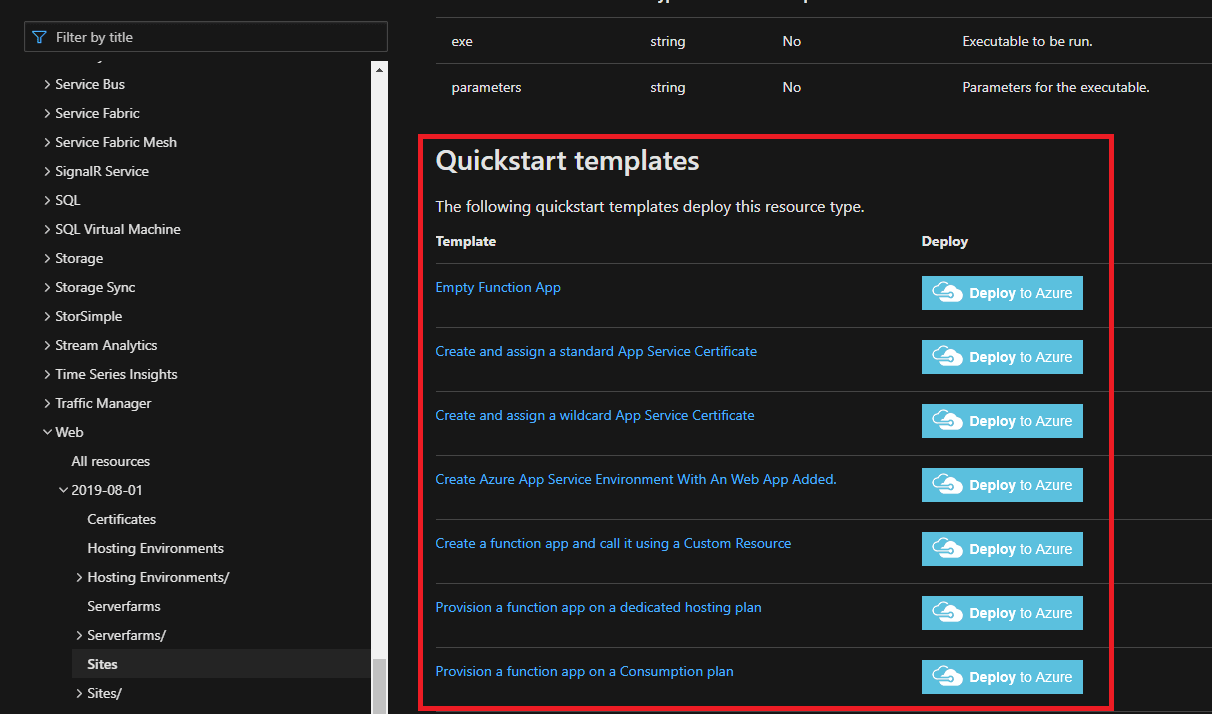
Next, you can refer to Microsoft official documents 1. In this document, you can find what kind of properties are defined, what kind of value can be specified, etc. You can modify the exported template by reading these documents. You can also find sample templates at the bottom of each reference page.
3. Check REST API reference
In some cases, You cannot find any explanations about the detail of some property object of ARM Template.
In that case, REST API reference may help you.
When you run your ARM Template, associated REST APIs are called in the backend.
This means you can guess the object definition by REST API reference 2.
Other Tips
Template Function
You can use template functions to effectively represent Azure resources.
For example, you can use copy function to create an array object.
1{2 "$schema": "https://schema.management.azure.com/schemas/2018-05-01/deploymentTemplate.json#",3 "contentVersion": "1.0.0.0",4 "parameters": {5 "ipAddressArray": {6 "type": "string",7 "metadata": {8 "description": "IP Address split by a comma."9 }10 }11 },12 "resources": [13 {14 "type": "Microsoft.Web/sites/config",15 "name": "functionConfig",16 "apiVersion": "2018-11-01",17 "location": "[resourceGroup().location]",18 "scale": null,19 "properties": {20 "copy": [21 {22 "name": "ipSecurityRestrictions",23 "count": "[length(split(parameters('ipAddressArray'), ','))]",24 "input": {25 "ipAddress": "[string(split(parameters('ipAddressArray'), ',')[copyIndex('ipSecurityRestrictions')])]",26 "name": "[concat(resourceGroup().location, copyIndex('ipSecurityRestrictions'))]"27 }28 }29 ]30 }31 }32 ]33}Suppose ipAddressArray is a string parameter which represents a set of IP address split by a comma.
10.0.0.0/16,10.0.1.0/16,...
This ARM Template will be compiled like this:
1{2 "$schema": "https://schema.management.azure.com/schemas/2018-05-01/deploymentTemplate.json#",3 "contentVersion": "1.0.0.0",4 "parameters": {5 "ipAddressArray": {6 "type": "string",7 "metadata": {8 "description": "IP Address split by comma"9 }10 }11 },12 "resources": [13 {14 "type": "Microsoft.Web/sites/config",15 "name": "functionConfig",16 "apiVersion": "2018-11-01",17 "location": "japaneast",18 "scale": null,19 "properties": {20 "ipSecurityRestrictions": [21 {22 "ipAddress": "10.0.0.0/16",23 "name": "japaneast0"24 },25 {26 "ipAddress": "10.0.1.0/16",27 "name": "japaneast1"28 },29 ...30 ]31 }32 }33 ]34}You can see ipSecurityRestrictions is defined by copy function.
For more information, see Microsoft official document 3.
Other tools
Resource Explorer
Resource Explorer 4 is also useful for you to understand how to describe the resource as json format.
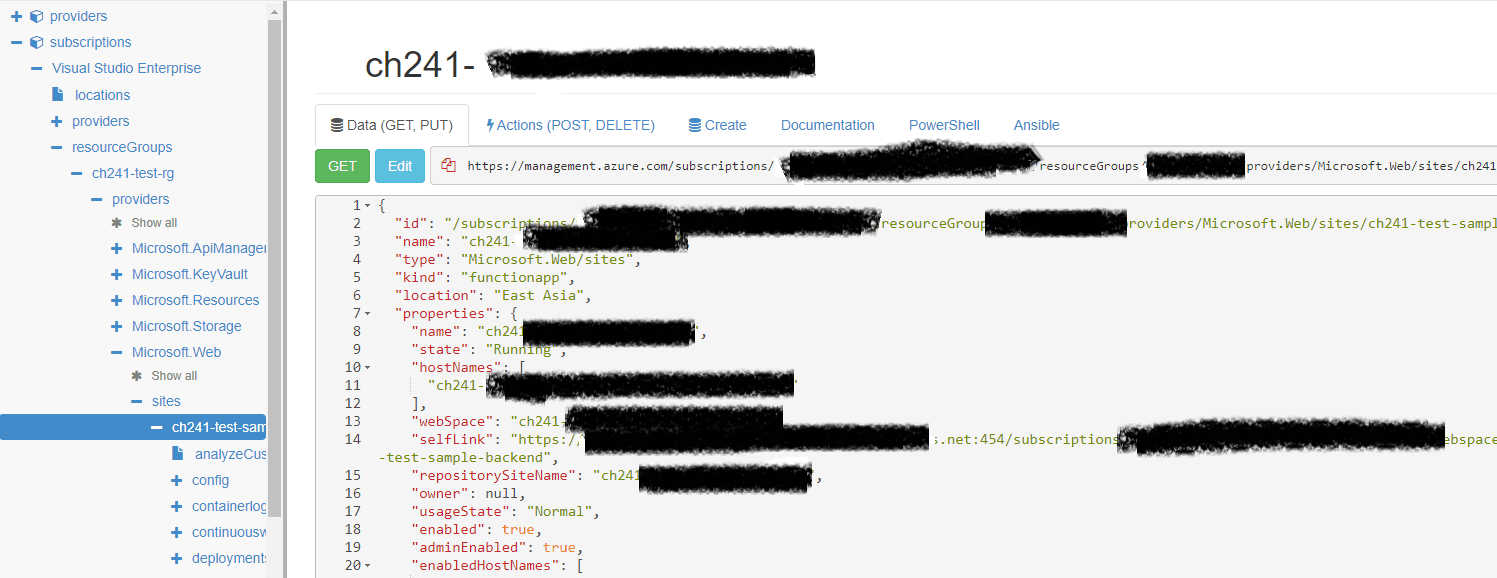
This tool is useful when you want to check properties of the resource.
Suppose you need to get managedId from API Management.
1{2 "value": [3 {4 "id": "/subscriptions/your-subscription-id/resourceGroups/your-resource-group-name/providers/Microsoft.ApiManagement/service/your-api-management-service-name",5 "name": "your-apim-name",6 "type": "Microsoft.ApiManagement/service",7 "location": "Japan East",8 "etag": "xxx",9 "properties": {10 "publisherEmail": "xxx",11 "publisherName": "xxx",12 "notificationSenderEmail": "xxx",13 "provisioningState": "Succeeded",14 "targetProvisioningState": "",15 "createdAtUtc": "2020-04-13T09:37:25.5871876Z",16 "gatewayUrl": "https://your-apim-name.azure-api.net",17 "gatewayRegionalUrl": "xxx",18 "portalUrl": "https://your-apim-name.portal.azure-api.net",19 "developerPortalUrl": "https://your-apim-name.developer.azure-api.net",20 "managementApiUrl": "https://your-apim-name.management.azure-api.net",21 "scmUrl": "https://your-apim-name.scm.azure-api.net",22 "hostnameConfigurations": [],23 "publicIPAddresses": [24 "x.x.x.x"25 ],26 "privateIPAddresses": null,27 "additionalLocations": null,28 "virtualNetworkConfiguration": null,29 "customProperties": {30 "Microsoft.WindowsAzure.ApiManagement.Gateway.Security.Protocols.Tls10": "False",31 "Microsoft.WindowsAzure.ApiManagement.Gateway.Security.Protocols.Tls11": "False",32 "Microsoft.WindowsAzure.ApiManagement.Gateway.Security.Protocols.Ssl30": "False",33 "Microsoft.WindowsAzure.ApiManagement.Gateway.Security.Ciphers.TripleDes168": "False",34 "Microsoft.WindowsAzure.ApiManagement.Gateway.Security.Backend.Protocols.Tls10": "False",35 "Microsoft.WindowsAzure.ApiManagement.Gateway.Security.Backend.Protocols.Tls11": "False",36 "Microsoft.WindowsAzure.ApiManagement.Gateway.Security.Backend.Protocols.Ssl30": "False",37 "Microsoft.WindowsAzure.ApiManagement.Gateway.Protocols.Server.Http2": "False"38 },39 "virtualNetworkType": "None",40 "certificates": null41 },42 "sku": {43 "name": "Developer",44 "capacity": 145 },46 "identity": {47 "type": "SystemAssigned",48 "principalId": "your-id",49 "tenantId": "your-tenant"50 }51 },Resource Explorer will help you understand the structure of the resource.
In this case, you can retrieve the id via identity.principalId.
So, here is the template function to access the id;
1"[reference(parameters('resourceId'), 'api-version', 'Full').identity.principalId]"ARM Template Viewer
ARM Template Viewer, which is an extension of Visual Studio Code, is also useful to visualize your resources.
Here is a diagram created by ARM Template Viewer.
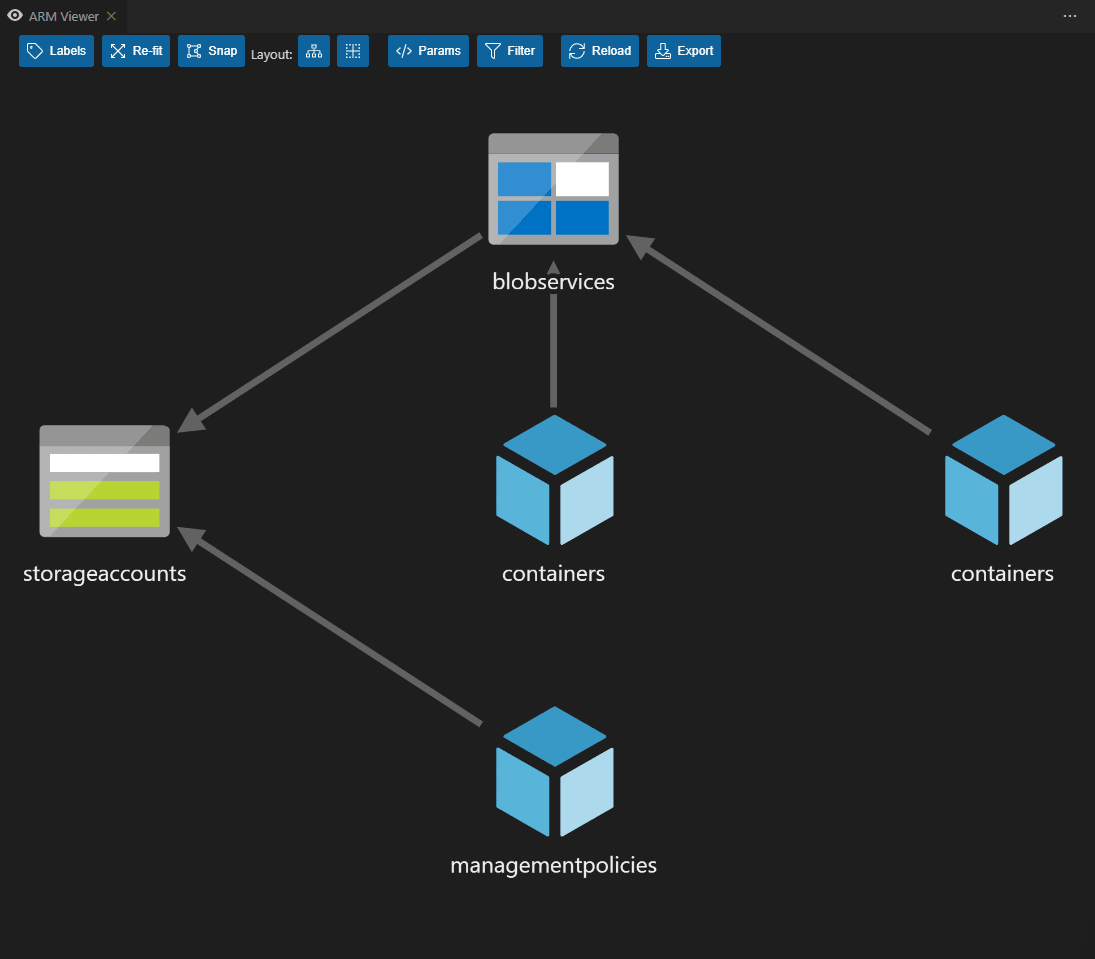
It will help you understand how each resource depends on each other.
Summary
In this article, I have explained how to efficiently create a new ARM Template.
Now you can create whatever resources you need via ARM Template. Good luck!